


 اردو
اردو  English (UK)
  Русский
  বাংলা
বাংলা  العربية
  日本語
日本語  한국어
한국어  Magyar
  Norsk nynorsk
  Türkçe
  עִבְרִית
  Español
  Čeština
  Svenska
  Português
  Ελληνικά
  Suomi
Suomi  Nederlands
  Română
  Italiano
  Français
  Polski
  Українська
  Deutsch
  简体中文
简体中文  Slovenčina
  Српски језик
  Azərbaycan dili
  O‘zbekcha
  አማርኛ
አማርኛ 

Start with a clearly labeled Open/Close button that stays in a fixed spot and is keyboard accessible. youre aiming for a control you can reach without scrolling, whether youre at a desk or on the move. have the label switch between Open Menu and Close Menu so youre never guessing the state, and keep the focus ring visible for keyboard users. the button should sit above the content, visible at all feet of the page, so users can grab it without hunting through lines of text. you have an option to position the control in a consistent x/y corner so it feels native across layouts.
Design for keyboard first: Enter یا Space toggles the menu, Escape closes it, and Arrow keys move between items. Use aria-expanded اور aria-controls to expose state and relationships, but narrate the behavior so users understand what toggles what. If the menu opens, trap focus inside until they close it or move back to the trigger; this keeps navigation reliable on fields, vehicles, and other shared devices where input is noisy and theyre commonly used by many hands.
Responsive behavior matters: start mobile-first and adapt to larger viewports with a consistent pattern. For screens under 768px, consider a compact dropdown or off-canvas panel anchored to the button; above that width, switch to an inline list in the header. Keep lines of content readable, and place a small set of markers near the top so users know where they are in the collection. Think of the eastern markers at sunrise; the lines sit near the top, and the loft sits above the horizon, helping orientation, like a ridge where a hiker notes the peak.
Measurement and iteration: aim for a task success rate of at least 95% for opening the menu and reaching the main destination with keyboard or screen readers. Target initial load under 1.5 seconds on a mid-range device, with essential assets ready by 400 ms. Match WCAG AA on color contrast (text 4.5:1) and ensure focus indicators meet a 3:1 contrast against the background. Include a skip-to-content link at the top and a concise, logical collection of sections; review feedback every month and adjust accordingly. were you able to improve the workflow for hikers, commuters, and users with limited dexterity, or did you notice friction when youre navigating lines of items, especially on small screens? were you already tracking whether the option changes reduced friction for feet on the ground?
Keyboard-first open/close controls with visible focus indicators
Start with a native button as the toggle and reflect state with aria-expanded اور aria-controls. Activate with Enter یا Space to open, and use Escape to close. This approach satisfies keyboard users without relying on hover.
On open, move focus to the first interactive item inside the panel. If there isn’t one, return focus to the toggle so users can close it quickly with Escape.
Provide a clearly visible focus indicator for every focusable control. Favor the browser’s default focus ring or a high-contrast outline that remains visible against all backgrounds. Avoid removing focus cues on focusable elements; they must stay visible when navigated by keyboard.
Link the panel to its trigger with aria-controls and connect the label with aria-labelledby. When closed, apply aria-hidden to the panel so assistive tech can skip it; when opened, remove that attribute or set it to false. This keeps the reading order predictable and improves screen-reader feedback. If possible, announce state changes with a brief, non-intrusive update using aria-live.
Test with a keyboard-only flow: Tab to the toggle, press Enter یا Space, then use Escape to close. Ensure the focus stays within the panel while open and returns to the toggle after closing. Check on mobile devices by resizing a viewport and ensuring the focus remains quick and logical to navigate.
Keep scripting lean to avoid delays; a snappy toggle reinforces trust. For high-contrast contexts, calibrate colors so the focus ring stays obvious. Add a brief transition so the panel’s appearance feels smooth but remains responsive for users who rely on the keyboard.
ARIA labels and live regions to announce toggle state
Start with a visible, keyboard-friendly toggle button that includes aria-label describing the action, and set aria-expanded to reflect the on/off state. Connect it with aria-controls to the menu region. Add a live region near the menu with aria-live=”polite” and aria-atomic=”true” and update its text to announce changes, for example “Main navigation opened” or “Main navigation closed.” times weve implemented this pattern on a travel-focused website, the feedback from users around Shenandoah and limberlost areas has been consistently clear: the state is obvious and avoids endless confusion. what they want is predictable behavior; this setup helps readers arriving at valleys or along roads understand whether the menu is available without having to infer from icons. note: test with real assistive tech and adjust wording to avoid unnecessary repetition.
To keep announcements natural, avoid duplicating content when the user tabs through items; the live region should update only on state changes, and not on every focus event. Never rely on color or motion to convey state; the live region provides accessible feedback. This is among the best for readability and speed, says experienced testers. If users navigate by keyboard, theyre sure of the state; if content were long, keep messages short. You can customize the message to include the menu name and context, like “Main navigation opened” for the main menu and “Alt menu opened” for the secondary area, so users can orient themselves without extra effort. Consider the needs of heavy pages with long lists; the text should arrive within a single breath and not cause fatigue for screen reader users. Others have found that including a short context helps, such as “fishermen around Shenandoah roads see the menu state.”
Implementation details
Set aria-controls on the toggle button to reference the region. The region should have role=”region” and aria-label describing the content, e.g., “Main navigation.” Add aria-live=”polite” and aria-atomic=”true” to the region. Update the live region text when the toggle changes: show “opened” or “closed” and optionally the name of the section. Use aria-expanded=”true”/”false” on the button to reflect state; you can also apply aria-pressed if the control acts as a toggle. Ensure the update happens synchronously with the click or key press and does not rely on CSS transitions to trigger the announcement. If you need to announce a sub-section, consider a second live region with aria-live=”polite” and a concise label. This pattern works across layouts and helps ensure that important signals reach users who rely on assistive tech. This approach is natural to adopt and scales well as your website grows.
Testing and validation
Test with keyboard navigation and screen readers such as VoiceOver and NVDA. Confirm the live region announces the exact state change and arrives quickly, even on long, heavy pages. Check on mobile devices to ensure touch toggles reliably trigger the state update. If wording is not precise, revise the text to use succinct phrases like “opened” and “closed” and avoid repetition. When you encounter edge cases, adjust as needed and document outcomes. the highest satisfaction comes from consistent, concise messages that arrive at the right moment, not from lengthy narration. others in the team notice that this approach reduces support requests and helps people move through content with confidence.
Responsive breakpoints for menu layout aligned with booking flows
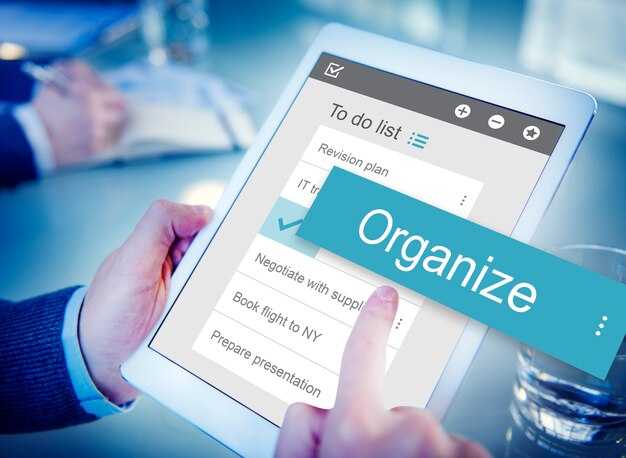
Recommendation: implement a breakpoint at 768px to switch to an accessible off-canvas menu that mirrors the booking steps from search to confirmation.
This trad approach allows users to stay focused on the booking flow without unnecessary scrolling, and it remains permitted by accessibility guidelines when labels stay concise and actions stay visible.
- Define breakpoints and states: 0–767px mobile, 768–1023px tablet, 1024px+ desktop. On mobile, collapse to a vertical list with the front of the booking flow at the top; keep touch targets large and the length of labels tight for quick taps.
- Align ordering with booking steps: Search and regional filters precede site and camping options, followed by dates, guests, extras, and final review/book. On each breakpoint, ensure the user can reach the final action within three taps, going closer to completion with every step reached.
- Keep visual weight balanced: limit heavy icons on small screens; favor text labels and a thinner header to reduce cognitive load while preserving the sense of progress during the booking flow.
- Pattern: Off-canvas panel with a backdrop preserves a clean front area on mobile while serving the booking flow. This keeps the service accessible and avoids crowding the top bar.
- Pattern: Group by function and region: regional sites, popular destinations, and camping options (including sites near meadows and wilderness) to help users filter faster without leaving the flow.
- Pattern: Thematic cues that align with nature-focused trips (nature, warmer climates, falls, and nearby trails) to guide choices without overwhelming the user.
- Pattern: Label length control: cap primary actions at 2–3 words, ensuring buttons stay within a comfortable width so users don’t reach the edge of the screen.
Practical tips: test with real booking scenarios that include hawksbill regional sites and camping near waterfalls. Have them appear in a compact card layout on smaller screens and expand into a grid on larger ones, ensuring the user can serve their needs without extra steps. Within every breakpoint, keep the flow extremely predictable and reachable, so users feel confident moving from search to final confirmation.
Touch targets, tap areas, and gesture considerations for mobile
Set touch targets to at least 48×48 CSS pixels, with 8 px clearance and bottom-friendly placement so thumbs can reach them without stretching. This is the recommended baseline for best reliability on most devices and remains solid during busy periods.
Make hit areas around icons a little larger when controls use rounded shapes, and cover the screen ridges so taps land reliably. For map pins representing a hotel, lodges, and cabins, offer a larger hit area and keep interactions smooth in peak usage; use a heat cue to adjust sizes in highlights and service states.
Gestures: favor simple taps and horizontal swipes for navigation; avoid multi-finger gestures on small devices; provide an obvious back control and visible focus states. If a user arrives after a month-long trip, show a clear confirmation after a tap and a rose focus ring to indicate activation.
Layout stays predictable under limited screen real estate: place primary controls in a bottom band and keep five actions or fewer in a single row. Leaves a consistent hit area across hotel, lodges, and cabins sections. For less-busy periods, slightly enlarge targets to reduce mis-taps; for peak seasons, keep sizes stable to prevent errors during picnic planning and quick checks in cabins and lodges.
Managing focus when opening and closing menus to avoid drift
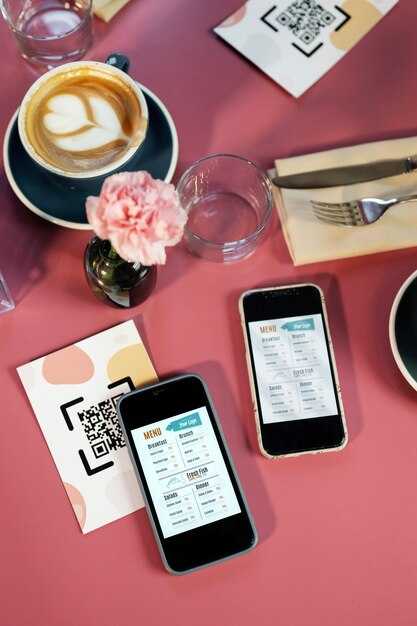
Trap focus inside the menu on open and lodge it on the first entry; the focus sits on the first interactive item, not the space behind it. Update the trigger’s aria-expanded attribute and provide a visible focus ring. When closing, return focus to the initiating control to arrive at a predictable spot. If an advertisement distracts, don’t move focus to it; keep the menu as the active region until it closes. For first-come controls, enforce the same flow each time to reduce surprises. Doing this takes discipline and isnt about gimmicks; an experienced developer can implement a simple focus trap that works across side menus and overlays. Unless the menu is active, focus shouldnt wander.
Practical steps
Guides looking for best practices will learn to spot drift early. Use roving tabindex: keep one element tabindex=”0″ and set others to -1; Arrow keys move the focus, and Tab/Shift+Tab cycle within the menu. This approach keeps the entry, items, and actions in a tight space where the user expects them. Though the layout may include curves or skyland-like panels, the focus anchor stays inside the side menu rather than wandering. Planning the flow now helps you spot the milepost where drift often happens, so you can tighten the logic later. If issues were spotted during testing, adjust accordingly.
On open, arrive at the first entry; on close, arrive back on the trigger. For first-come scenarios, store the last focus target and restore it immediately after the menu closes. If the user presses Escape, close the menu and return focus. Busy pages can break flow; test across devices and ensure the trap still operates when tabs wrap and focusable elements shift. Like pets, the focus should sit on the expected item; keep it there and guide it back if it moves. Planning helps you set a milepost in testing so you know you’re teaching the right habits, and if something feels off, review the interaction with an experienced teammate; you’ll learn where to tighten the controls and improve spotting drift next time.
نفاذ کے بارے میں نوٹ
Connect the trigger to the panel with aria-controls and reflect the state with aria-expanded. Keep all interactive items inside the panel focusable and ignore outside content until the menu closes. Use a focus trap or roving tabindex strategy, and listen for Escape to close. When the panel closes, return focus to the initiating control so the user can arrive at a familiar point on the page.