


 Русский
  English (UK)
  বাংলা
বাংলা  العربية
  日本語
日本語  한국어
한국어  Magyar
  Norsk nynorsk
  Türkçe
  עִבְרִית
  Español
  Čeština
  Svenska
  Português
  Ελληνικά
  Suomi
Suomi  Nederlands
  Română
  Italiano
  Français
  Polski
  Українська
  Deutsch
  简体中文
简体中文  Slovenčina
  Српски језик
  اردو
اردو  Azərbaycan dili
  O‘zbekcha
  አማርኛ
አማርኛ 
Use Apple Pay for fast, secure transactions with your iphone, and avoid exposing card numbers. With a single tap on your mobile device, you authorize payments and complete the transaction without sharing the card data.
Merchants across the globe accept Apple Pay, and most banks support tokenization tied to your card. In australia, you’ll find thousands of locations where you can pay in-store with a tap, online, or within apps.
To get started, open the Wallet app on your iphone, add a card, and follow the prompts. The setup requires that your issuer supports Apple Pay and that you agree to the issuer’s policy and conditions; you can add cards for multiple applicants if allowed. The process is quick and works here across many locations.
Apple Pay uses tokenization so merchants never see your real card number; a one-time transaction code is created for each payment, protecting you on the internet and at point of sale.
Check your card issuer’s policy for international usage and any per-transaction limits, as some cards require extra verification for online purchases. In most cases you can pay with Apple Pay in person, online, or within apps, and you’ll notice a green indicator when the payment is authorized.
For merchants and developers, enable Apple Pay by following the official guidelines and obtaining the required certification; if you are an applicants business, verify acceptance policies and set up a merchant account to begin accepting Apple Pay at checkout.
Apple Pay in Europe: Setup, Use, and Security
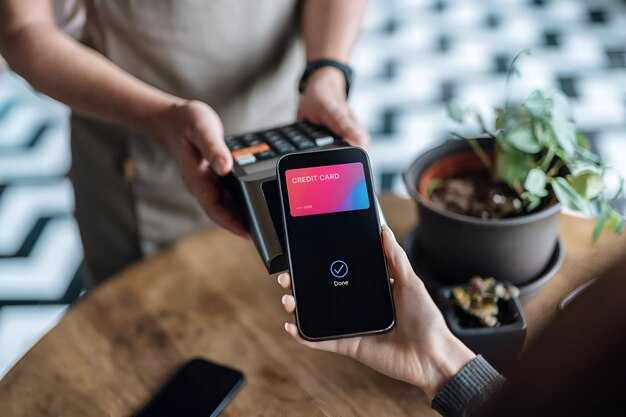
Set up Apple Pay in Wallet today by adding at least one card issued by a European bank that supports Apple Pay; you can use it anywhere contactless readers appear, across stores, apps, and websites within unions and territories that support the service.
In Europe, the setup happens in Wallet, the app called Wallet on iPhone. Open Wallet, tap the + button, and follow prompts to add a card; it links with your card provider and will verify the card through the issuer’s app or SMS verification, according to your bank’s requirements. When asked to verify, you can set a default card and arrange the order of cards in Wallet to match your routine.
Use is simple at checkout: look for the contactless symbol, authenticate with Face ID or Touch ID, and complete the payment; whether you pay in-store, in-app, or online, the actual card number is not transferred to the merchant because a token is sent instead. The token is stored securely on your device, and encrypted in transit with the providers.
Security relies on tokenization, biometric prompts, and device protection. Each transaction requires your authentication; if the device is lost, use Find My to suspend Apple Pay. Merchants never receive your real card number; only a dynamic token is shared with them.
Across territories in the European Union, major providers support Apple Pay with networks such as visa and Mastercard; if your issuer participates, you can add balances from accounts and linked cards. Data remains protected because tokenization prevents exposure of account numbers, and the system remains connected to your issuer’s controls.
Loans or installment options depend on the card issuer; Apple Pay itself does not create a loan. If your provider offers installment plans, these are managed by the issuer or lender, not by Apple Pay, and the payment flow stays secure.
Advice from your bank helps you stay safe: keep iOS updated, use a strong passcode, enable two-factor authentication on the Apple ID, and review recent transactions in Wallet. If you notice any suspicious activity, contact your provider without delay.
Which devices support Apple Pay in Europe?
Use iPhone and Apple Watch for apple Pay in Europe, plus iPad and Mac for online or in-app purchases.
In stores, payments happen via NFC: tap your iPhone or Apple Watch series at the reader, then enter your passcode or use facial recognition on supported devices to confirm.
Online and in-app purchases work in Safari on iPhone, iPad, and Mac. On iPhone or iPad, select Apple Pay at checkout and confirm with Face ID or Touch ID; on Mac, confirm with Touch ID on supported models or complete the approval on a linked iPhone. To start, enter your card into Wallet to bind it to Apple Pay and then verify with your issuer license; this makes future purchases direct and faster, with less risk of card skimming.
Supported devices include: iPhone 6 and later, Apple Watch series 1 and newer, iPad models with Touch ID or Face ID, and Mac models with Touch ID.
In Europe, expansion of Apple Pay accessibility depends on issuer licenses and merchant adoption. Some banks, including goldman analysts note, rolled out support earlier while others joined later. If your card isn’t listed, check with your bank or card issuer to avoid delays and consider alternatives to prevent gaps in use across places you shop.
Tips to maximize use: keep your devices updated, add more cards to Wallet, and verify that your issuer is listed for Europe. Mobile payments simplify purchases by reducing the need to carry physical cards, and they help you enter a smoother activity at checkout while preserving privacy. Their smooth performance in well‑supported places can make traditional cards feel less convenient, and the overall experience stays secure through built‑in authentication and license checks.
How to add a card to Apple Pay and verify it
Open Wallet on your iPhone and tap Add Card to begin. Use the built-in camera to load your card details, or choose Enter Card Details Manually if the camera cant read the numbers. Enter the expiration date and the security code, then tap Next. For macs, you can also load the card via System Settings > Wallet & Apple Pay; the card will be ready for use on both iPhone and Mac when you’re done. Each step is straightforward and built to keep your information secure.
Apple Pay verifies the card through the issuer. The issuer may send a one-time code by SMS, email, or through the issuer’s banking app. In some cases a small test charge appears; view the amount and enter the code or click Verify to confirm. If you cant complete verification on the first try, wait a bit for processing and try again; delayed checks can happen with some banks.
When verification finishes, the card shows as Done in Wallet. You can use it for in-store payments, online purchases, and apps; you can split payments with others when the merchant supports it. dont share card details; use without exposing your number. If you need to manage the card later, long-press the card in Wallet to view options and click Continue to make changes.
For toronto-area users, support from major issuer companies is strong, and dozens of banks participate. arab markets also issue cards that work with Apple Pay; check your local issuer’s app for confirmation. Apple Pay includes cardfree promos in some regions, and the flow includes multiple card networks. The setup includes dozens of options and supports updated devices so you can pay with confidence.
Once your card is added, you can view it in Wallet and use it along with other cards across devices. If you loaded several cards, you can reorder them under Wallet & Apple Pay settings. dont forget to keep your device updated to the latest iOS and macOS version to ensure the built-in security features stay current; this helps ensure the verification remains smooth across accounts and issuers.
Which banks and card networks are supported across Europe?
Use a Visa or Mastercard card issued by a major European bank to ensure the widest coverage across Europe. Whatever country you reside in, Apple Pay supports these networks in virtually every market. The rolling rollout continues across territories, abroad and within the eurozone, bringing more issuers into the fold each quarter. Millions of cards from issuers across Europe are already compatible, making everyday tapping fast and reliable.
Card networks
- Visa – the most widely accepted network across stores and online payments
- Mastercard – broad coverage for in-store and online purchases
- American Express – supported by many issuers in Europe, but availability varies by bank
Banks and issuers (examples by region)
- United Kingdom: Barclays, HSBC, Lloyds, NatWest
- Germany: Deutsche Bank, Commerzbank, Sparkassen & Volksbanken groups
- France: BNP Paribas, Crédit Agricole, Société Générale
- Spain: Banco Santander, BBVA
- Italy: UniCredit, Intesa Sanpaolo
- Netherlands: ING, Rabobank
- Nordic region: SEB, Handelsbanken, Danske Bank
How to verify support (quick steps)
- Visit the websites of your issuer to confirm Apple Pay compatibility and card-by-card support
- In Wallet, add your Visa or Mastercard and follow on-screen prompts to verify the card
- Look for the Apple Pay banner on your issuer’s pages and the country-specific software requirements
- Check the existing list of compatible cards in Apple’s country pages to prevent mismatches
Tips for looking beyond the basics
- If your bank isn’t listed, contact the issuer directly to confirm support and any regional limits
- Remember that loyalty programs can be tied to Wallet; add loyalty cards to maximize the benefits
- Some mode options differ by country, but tapping to pay remains the common method for everyday purchases
Практические заметки
- When abroad, ensure your card is enabled for contactless payments and that the issuer hasn’t placed any regional restrictions
- For person-to-person transfers, rely on your bank’s app rather than Apple Pay, as Wallet primarily handles card-present and online payments
- Keep your device up to date with the latest iOS software to avoid compatibility gaps
Bottom line: whatever country you travel to in Europe, Visa and Mastercard cover the vast corner of merchants, and many issuers also support American Express. The предельный goal is seamless, safe tapping across the continent, backed by issuer sites, official websites, and ongoing анализ of rolling expansions–so consult your bank’s pages and Apple’s country pages for the latest, looking ahead at additions in your territory.
How to pay with Apple Pay in stores, online, and in apps across Europe
Enable Apple Pay in Wallet, then double‑click the side button and authenticate with Face ID to pay in stores; this delivers speed at checkout and is accepted by most listed merchants.
In stores across Europe, simply hold your iPhone or Apple Watch near the contactless reader along the NFC symbol. If you have multiple cards, switch to the one you want in Wallet before you tap. You’ll hear a quick beep and see a confirmation on the screen, and the receipt can appear in your inbox or in Wallet for easy tracking.
Online and in Safari, tap the Apple Pay button at checkout on supported sites, then select a card from Wallet and confirm with Face ID or Touch ID. Your address and name for shipping can be pulled from your saved contact info, while the payment data stays on device and never goes to the merchant; this keeps details protected while you shop quickly.
In apps, look for the Apple Pay button at checkout. Tap it, authenticate with Face ID or Touch ID, and complete the purchase in seconds. Itunes‑great integration aside, this flow works smoothly with apps across Europe and confirms the order in moments.
Across Europe, Apple Pay supports major cards issued by local and international banks, including amex, Visa, and Mastercard, with many prepaid options usable as well. Banks may list regional limits or 3DS checks; some merchants show split prompts at checkout, but Apple Pay typically processes a single card per transaction. Fees stay clear at the merchant level, and the saved address and name help you avoid re‑typing during each purchase, simplifying the process in busy markets along the continent.
Security is built into the flow: Apple Pay uses device‑specific tokens, so your real card number isn’t shared with merchants. You can protect access with a device passcode, Face ID, or Touch ID; if your device is lost or stolen, use Find My to lock or remove payment methods from your inbox promptly. If a merchant doesn’t list Apple Pay, you can still pay with a quick contactless card tap or switch to a supported method in the same checkout place, ensuring your purchase is booked and confirmed.
What are the built-in security and privacy protections of Apple Pay?
Enable biometrics (Face ID or Touch ID) or a strong passcode and use Apple Pay for all purchases to reduce exposure to card data. Keep your device updated to receive the latest protections against threats.
Apple Pay protects your card details with tokenization. A Device Account Number (DAN) is stored securely in the device’s Secure Element and is used to generate a one-time cryptogram for each transaction. Merchants never see your real card number, and the payment network verifies the cryptogram without exposing your data.
Privacy stays private by design. Apple does not share your actual card numbers with third-party merchants, and data used for fraud detection or service improvements stays separate from your personal identifiers. Your viewing of purchases happens through private channels such as your Wallet or trusted issuer apps, and you can review transactions to the extent your bank supports it.
In shopping scenarios, whether you pay in stores or online, you pay with a variety of banks and issuers. The system began in 2014 and now supports a broad range of locations, languages, and card types. In the US, issuers like Synchrony and others participate, and some merchants use processors such as Stripe to handle Apple Pay payments. In Portland or elsewhere, you’ll typically see a single authorization prompt and a dollar amount rather than the actual card details.
| Protection layer | What it does | What you should do |
|---|---|---|
| Secure hardware and tokenization | Stores a DAN in the Secure Element and uses a one-time cryptogram for each payment; no real card numbers travel to the merchant. | Use Apple Pay wherever available; avoid saving card details in browser wallets outside Wallet. |
| Biometric or passcode authorization | Requires user approval to authorize transactions; everything is verified by the payment network and issuer. | Enable Face ID/Touch ID and set a strong device passcode; you can manually adjust permissions in Settings. |
| Data privacy and sharing limits | Merchant sees limited token data and the amount; Apple minimizes exposure of private card data. | Review your policy and issuer notes; use monthly updates to stay informed about changes. |
| Lost or stolen device response | Apple Pay can be suspended or disabled using Find My iPhone; cards remain protected in the Secure Element. | Mark the device as lost, remove cards from Wallet if needed, and promptly revoke access from trusted devices. |
| Privacy controls and languages | Supports multiple languages and a wide variety of locations; data handling aligns with the core policy. | Review language and location availability in your region; adjust settings to limit data sharing where possible. |
Note: If you see unfamiliar activity, verify the merchant’s payment processor (for example, Stripe or another provider) and check your issuer’s app for any alerts. Always view transaction details in your Wallet or issuer portal to confirm the exact merchant and total before any retry.